
You’re Probably Paying for Microsoft 365 Copilot and Ignoring One of Its Most Powerful Features
Most people use Microsoft 365 Copilot like a chatbot. Copilot Notebooks turns it into a project partner that learns the context of your work.


Nobody’s Using the Best Feature in Microsoft 365 Copilot
A few weeks ago, I was sitting with a client reviewing how their team was using Microsoft 365 Copilot. Like many organizations, they’d invested in licenses because they wanted to save time, reduce repetitive work, and give employees access to AI inside the Microsoft tools they already used every day.
I asked a simple question. “So...how’s Copilot going?”
The answer sounded familiar. “We use it all the time.” Great — what do you use? “We summarize emails.” “We draft Word documents.” Anything else? Silence. Then someone finally said, “I mean...that’s basically it.”
I smiled, because I knew exactly what was coming next.
I opened Microsoft 365 Copilot, clicked Notebooks, and asked another question: “Have you ever opened this?” Everyone around the table shook their heads.
Ten minutes later, we’d built a notebook that contained project emails, Teams conversations, meeting notes, technical documentation, and planning documents. Copilot generated a project summary, built a visual mind map, created an audio overview, and answered detailed questions using only the information we’d provided. One person leaned back in their chair and laughed. “Wait...this has been included the whole time?”
Yes. And that’s the reaction I see almost every week.
We’re Still Using AI Like It’s 2023
Most people treat AI like Google with better grammar. Open a chat, ask a question, read the answer, close the window. Tomorrow, start over. It’s useful, but it’s also incredibly inefficient — every conversation begins with AI knowing almost nothing about what you’re working on. You spend time explaining the project, uploading documents, adding context, repeating yourself. Then you close the chat and do it all again later.
Imagine hiring the smartest consultant in the world, except that consultant forgets everything at the end of every meeting, every email, every conversation, every decision, every document, every single day. That’s frustrating, right? Yet that’s exactly how many of us work with AI. We’re constantly reintroducing ourselves, asking brilliant technology to work with almost no context.
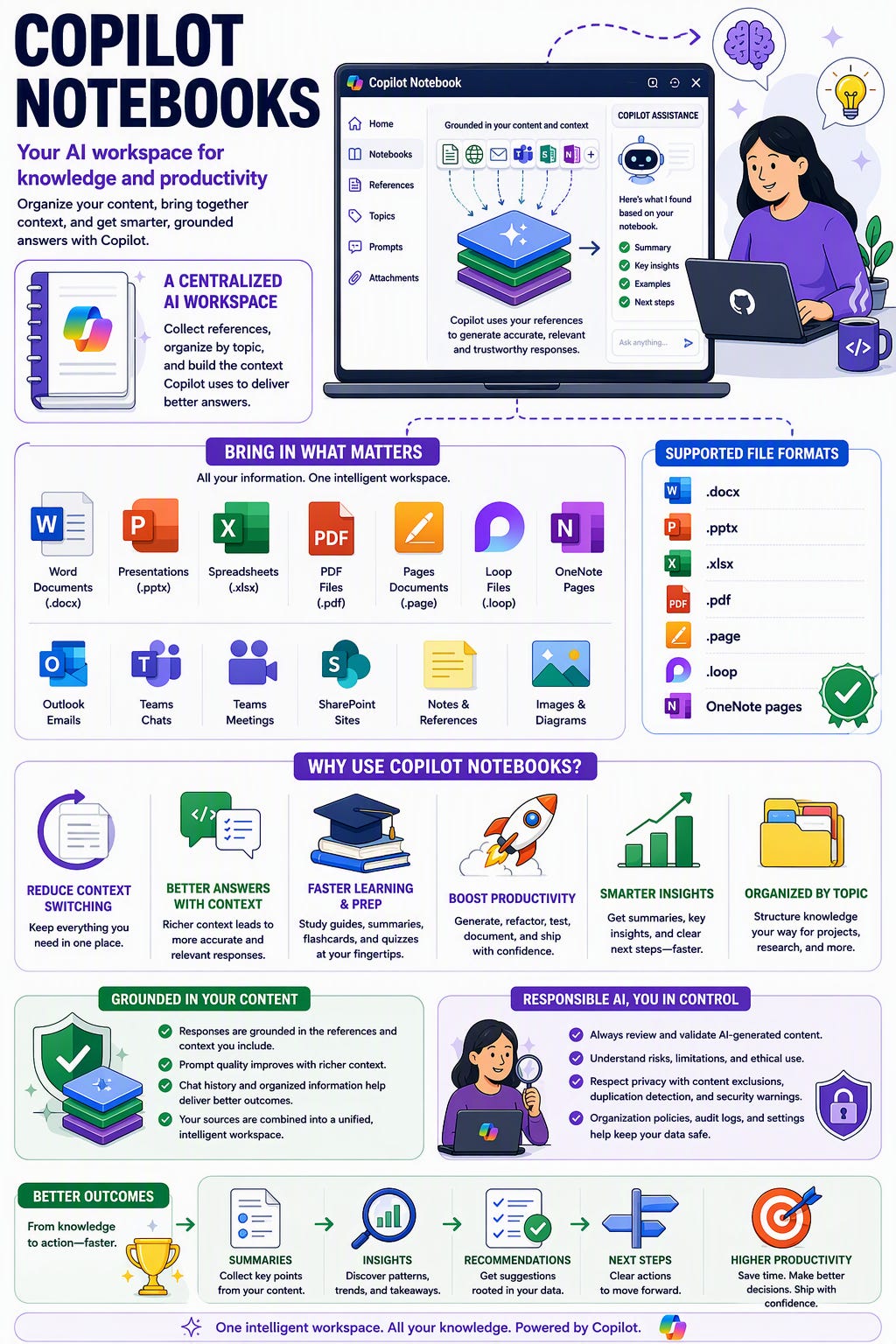
Copilot Notebooks changes that. Instead of starting with a blank conversation, you start with a workspace. Instead of asking AI to remember your project, you build a place where the project lives. That sounds like a small difference. It isn’t — it’s one of the biggest shifts in how we collaborate with AI.
Less a Chatbot, More a Digital Project Room
When people first hear the word “Notebook,” they immediately think of OneNote. That’s understandable, but it’s not the best comparison.
Instead, imagine you’re beginning a major project — rolling out Microsoft 365 Copilot across your company, studying for a certification, building next year’s technology roadmap, preparing for a customer workshop. What’s the first thing you usually do? You start collecting information: a PowerPoint presentation, meeting notes, emails, PDFs, Microsoft Learn documentation, a Teams conversation, a spreadsheet, an architecture diagram, a SharePoint folder. Soon it’s scattered everywhere — some in Outlook, some in Teams, some in SharePoint, some in OneNote, some buried in old Copilot conversations. Finding the information becomes almost as much work as doing the project itself.
Now imagine walking into a conference room instead. A whiteboard on one wall. Sticky notes on another. A table covered with printed reports. A binder full of meeting notes. Your laptop open with the project plan. Everything you need is visible, and everything belongs to the same project. Now invite AI into that room. That’s Copilot Notebooks.
It’s not simply another place to store notes. It’s a curated workspace where AI understands the project because you’ve intentionally gathered the right information together. Microsoft describes notebooks as a way to collect reference material into a single AI-powered workspace — those references become the foundation for every response Copilot generates inside that notebook. Rather than searching broadly, Copilot grounds its responses in the content you’ve chosen, which makes answers more relevant and easier to verify. That last point matters more than most people realize.
Context Is the New Prompt
For the last two years, we’ve been obsessed with prompt engineering — the perfect prompt, the secret prompt, the magic prompt. Entire businesses appeared promising libraries of prompts that would supposedly transform your AI results.
Here’s what I’ve learned after working with AI every day: a great prompt helps, but great context helps more.
Compare “Create a project update” — AI has almost no idea what project you’re talking about — with “Using the meeting notes, planning documents, Teams conversations, and architecture diagrams inside this notebook, create an executive update highlighting completed milestones, current risks, and next week’s priorities.” Notice what changed? The prompt barely did. The context did. That’s the real superpower. Copilot Notebooks isn’t making AI smarter. It’s making AI better informed, and that’s an important distinction.
Think About Netflix for a Minute
When you open Netflix, it doesn’t search every movie ever created — it searches its own curated catalog. That limitation is actually a strength. If every search for “The Office” also pulled from YouTube, TikTok, random websites, and every hard drive connected to the internet, the results would be chaos. Instead, Netflix gives you relevant results because it searches the right collection.
Copilot Notebooks works the same way. Instead of searching everything you’ve ever touched, it searches the collection you’ve intentionally assembled. That’s why the responses often feel dramatically more focused — the notebook acts as the project’s library, and every file you add improves the quality of future conversations.
This Substack is reader-supported. To receive new posts and support my work, consider becoming a free or paid subscriber.
What Actually Happens Behind the Scenes
Copilot does not memorize your documents, and it doesn’t permanently learn your company’s information. It works more like an incredibly fast research assistant. Picture asking someone, “Can you summarize everything about Project Phoenix?” Instead of guessing, they immediately read every email, meeting transcript, presentation, and document you’ve handed them. Thirty seconds later, they come back with a thoughtful answer and tell you exactly which documents they used.
That’s essentially what’s happening. Copilot retrieves the relevant information from your notebook’s references, uses that information to generate a response, and includes citations so you can trace where the answer came from. I actually love this — trust matters. If AI tells me something important, I want to know where it came from. I don’t want mysterious answers. I want receipts.
That’s one of the reasons I recommend Copilot for knowledge work inside Microsoft 365. Grounded responses are generally much more useful than generic AI answers, because you can verify the source material instead of simply hoping the response is correct.
Finding Copilot Notebooks
One of the funniest things about Copilot Notebooks is how hidden it feels. I’ve worked with organizations that have owned Microsoft 365 Copilot for months without realizing the feature even existed.
Inside the Microsoft 365 Copilot app, look at the navigation on the left — under Library, you’ll see Notebooks. That’s your starting point. If you spend most of your day inside OneNote, you’ll also notice notebook capabilities appearing there as Microsoft continues bringing the experiences closer together. Where you create the notebook isn’t nearly as important as what happens after you create it.
Click New Notebook. Give it a name. Now resist the temptation to immediately ask AI a question — instead, start feeding it context. This is where the magic begins.
Build the Notebook Before You Build the Prompt
One of the biggest mindset shifts I had to make was realizing that Copilot Notebooks isn’t where you ask questions. It’s where you prepare AI to answer them.
Think of it like cooking. You wouldn’t throw random ingredients into a pot and expect a five-star meal — you start by gathering quality ingredients. Your notebook becomes the ingredient list for every future conversation. The better your ingredients, the better the outcome.
When you create a notebook, you can add references from across Microsoft 365, including Word documents, Excel workbooks, PowerPoint presentations, PDFs, OneNote pages, Outlook emails, Teams chats, meeting recordings and transcripts, SharePoint documents, Microsoft Loop pages, and previous Copilot conversations.
That last one catches people by surprise. Imagine spending thirty minutes working through a complicated problem in Copilot Chat. Instead of losing that conversation in your chat history, you can add it as a reference to your notebook — now that work becomes part of your project’s knowledge base instead of a forgotten conversation. That’s incredibly powerful.
Think of Your Notebook Like a New Employee’s First Day
Whenever I explain Copilot Notebooks during workshops, I ask people to imagine they’re onboarding a new employee. Would you walk them into the office, point at a thousand files, and say “good luck”? Of course not. You’d hand them the important documents, explain the project, introduce the stakeholders, share the meeting notes, walk through previous decisions, provide architecture diagrams, explain the business goals. Only then would you ask them to start contributing.
Copilot Notebooks follows the same principle. You’re onboarding AI. The notebook is the orientation packet. Every document you add teaches Copilot a little more about the project — not because it’s learning permanently, but because you’ve intentionally assembled the context it needs for this conversation. That simple shift changes everything.
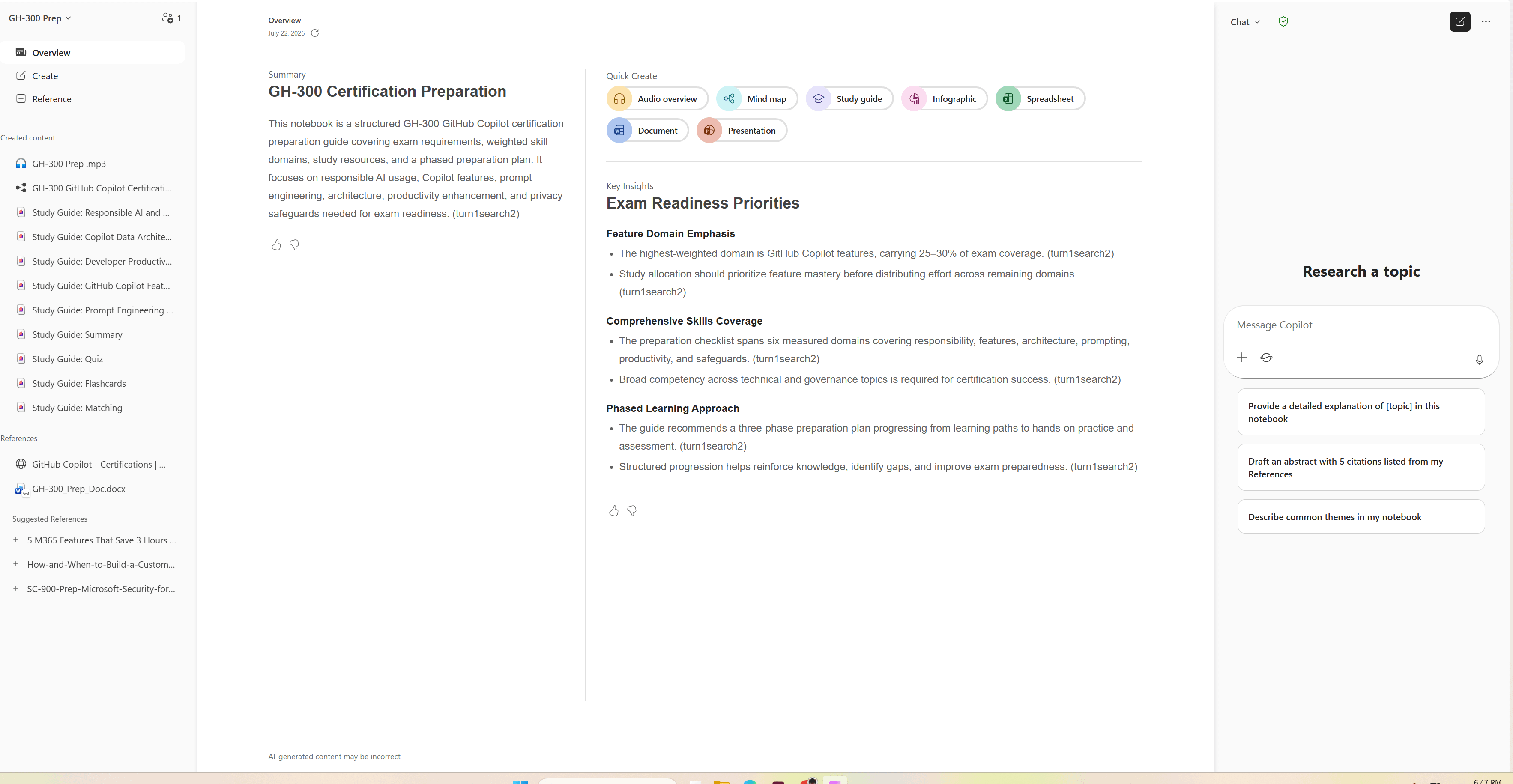
My GH-300 Notebook
Let me show you how I use this in the real world. As I’m writing this article, I’m preparing for the GitHub GH-300 certification. Like most certifications, there isn’t just one source of information — Microsoft Learn, official documentation, GitHub documentation, videos, practice questions, personal notes, architecture diagrams, community discussions. Normally I’d have browser tabs everywhere, PDFs in Downloads, bookmarks I’d never organize, sticky notes on my desk.
Instead, I created one notebook called GH-300 Prep. Every useful resource goes there, and every study session builds on the previous one. Now, instead of thinking “where did I save that document?” I’m asking things like “Can you explain the differences between GitHub Models and GitHub Spark?” or “Which exam objectives have I spent the least amount of time studying?” or “Summarize Responsible AI as if you’re teaching someone brand new to GitHub Copilot.”
Notice what changed. I’m no longer managing files. I’m learning. That’s where AI starts creating real value.
The Mind Map Became My Favorite Feature
I didn’t expect this to become my favorite feature. Then I tried it.
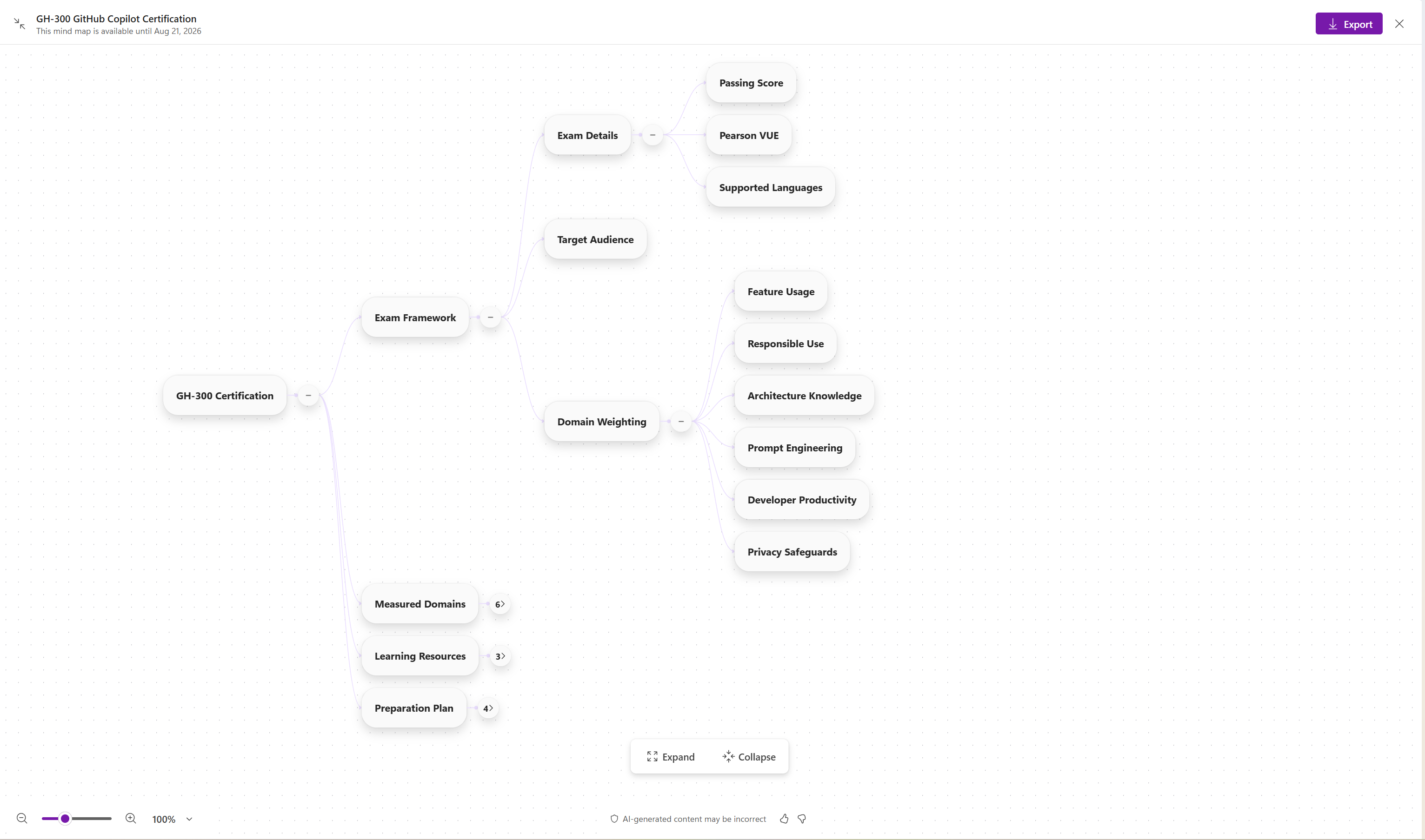
Copilot can generate a Mind Map from the content inside your notebook. At first glance that sounds like a nice visualization — it’s much more than that. A mind map helps you see relationships that are difficult to notice when you’re reading documents one page at a time. Trying to understand an entire city by walking one street is hard; climbing a mountain and looking down, you suddenly see the roads, the neighborhoods, the rivers, the connections. That’s what the mind map does. Instead of presenting information in a straight line, it shows how ideas connect.
As someone who’s a visual learner, I love this. When I opened my GH-300 notebook, Copilot built a visual map of the certification in seconds — exam objectives, measured skills, Responsible AI, developer productivity, GitHub Copilot features, code quality, agent capabilities, best practices. Each node became another doorway into the material. Instead of scrolling through hundreds of pages, I simply explored — click, expand, learn, repeat. Learning suddenly felt much more natural.
Why Mind Maps Work So Well
There’s a reason teachers have used concept maps for decades. Our brains don’t naturally organize information in chapters — we organize it through relationships. You don’t remember your own family alphabetically. You remember people through connections: mother, brother, cousin, grandparent, friend. Our brains naturally build networks, and mind maps mirror that process. That’s why they’re so effective for certifications, project planning, customer discovery, brainstorming, and strategic thinking.
Copilot is essentially doing the first draft of that organization for you. Instead of spending an hour figuring out how ideas connect, you start with a visual framework and build from there.
The Study Guide Feature Is Like Hiring a Tutor
After the mind map finished, I asked Copilot to build me a study guide. This is where I think many people underestimate the feature — it doesn’t simply summarize documents, it organizes them into something that’s easier to learn. My study guide included a high-level overview, topic breakdowns, learning objectives, key concepts, review material, practice exercises, and suggested follow-up questions.
Think about how much time you’d normally spend creating that yourself: reading, highlighting, organizing, rewriting, formatting. Now compare that with asking Copilot to generate a structured learning guide in minutes. That’s not replacing your learning. It’s removing the administrative work around learning, and there’s a big difference.
Flashcards Without the Busywork
I’ve always believed flashcards are one of the best ways to prepare for certifications. I’ve also always hated making them — read a paragraph, write a question, write an answer, repeat, again and again.
Copilot can generate flashcards from the references inside your notebook. Instead of spending an evening creating study material, you spend the evening studying. One of my flashcards asked what Agent Mode is. Another covered prompt engineering. Another reviewed exam delivery options. Another tested my understanding of Responsible AI. It wasn’t just saving time — it was helping me identify what I didn’t know yet, which is where learning actually happens.
Self-Quizzes That Reveal Your Blind Spots
One of the biggest mistakes people make while studying is confusing familiarity with understanding. You’ve probably experienced it — you read something three times, it feels familiar, then someone asks you a question about it and suddenly you realize you don’t actually know the answer. That’s why quizzes matter.
Copilot can generate knowledge checks based on your notebook content — think of them as conversations with your future exam. Instead of passively consuming information, you’re forced to retrieve it, and educational research consistently shows that retrieval practice strengthens long-term memory far better than simply rereading notes. Testing yourself isn’t just measuring learning. It’s creating learning. That’s why I now build quizzes almost every time I prepare for a certification.
The Audio Overview Changed How I Study
This was probably the feature I was least excited about. Then I used it, and now it’s one of the first things I create.
Copilot can generate an Audio Overview based on your notebook — imagine turning your project into a podcast. Instead of reading another document after dinner, you listen while driving, walking the dog, working out, waiting at the airport, doing yard work. Learning suddenly fits into moments that used to be lost. I especially like increasing the playback speed to 1.5x or 2x when I’m reviewing material I’ve already seen — it’s like having a study partner riding in the passenger seat. And because the audio is grounded in the notebook you’ve built, it stays focused on the project instead of drifting into unrelated topics.
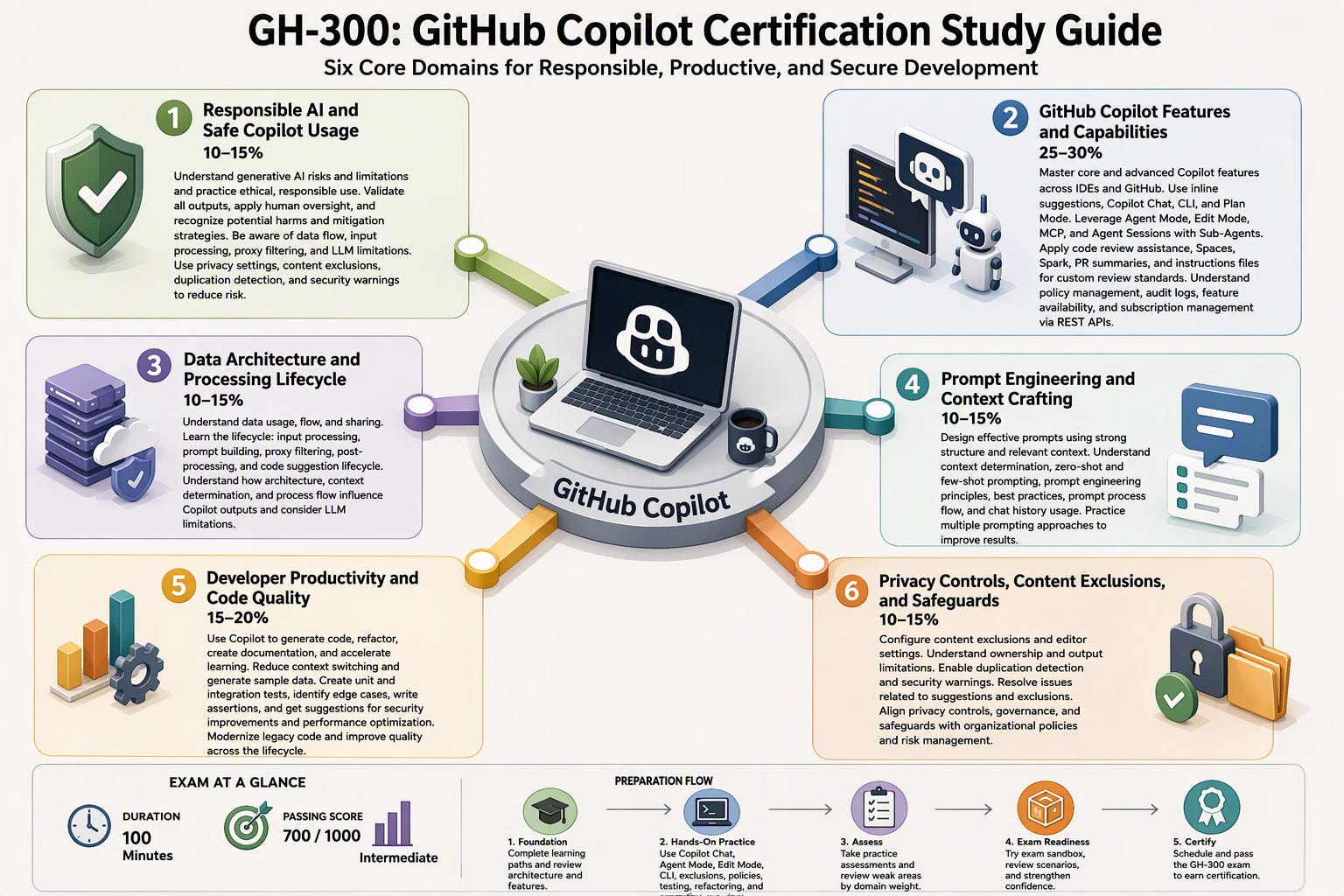
Infographics Aren’t Just for Social Media
One feature people often overlook is the ability to generate visual summaries and infographics. The first question I hear is “why would I need an infographic?” Because not everyone consumes information the same way.
Imagine you’ve just earned a new certification and your manager asks, “so what does this actually mean for the business?” You could hand them a forty-page study guide, or you could hand them a clean visual explaining what the certification covers, the business value, the new capabilities you’ve gained, and why the investment matters. Which one do you think gets read? The same idea applies to customer presentations, executive updates, workshop materials, and even LinkedIn posts. Sometimes a visual is the fastest way to communicate a complex idea, and Copilot helps you get there faster.
One Notebook Becomes a Living Knowledge Base
Here’s what surprised me most. I thought notebooks would be useful at the beginning of a project — instead, I discovered they’re even more valuable six months later. Every project accumulates knowledge. Every meeting creates context. Every email answers a future question. Every document captures another decision. The notebook grows with the project. It becomes less like a folder and more like a living knowledge base. That’s the moment when Copilot stops feeling like software and starts feeling like another member of the team — and that’s where the real productivity gains begin.
Five Ways I Use Copilot Notebooks Every Week
By now you might be thinking, “this sounds great for studying, but what about real work?” That’s where Copilot Notebooks has become indispensable for me. The more I use it, the less I think of it as a feature inside Microsoft 365 Copilot and the more I think of it as the starting point for any project that’s going to last more than a few days. If I’m investing hours or weeks into something, it gets a notebook.
1. Certification Preparation. This is where I first realized how powerful Notebooks could be. For certifications like the GitHub GH-300, I don’t just collect study material — I build a complete learning environment. Microsoft Learn modules, official documentation, my notes, practice questions, architecture diagrams, previous Copilot chats, all living together. As I study, the notebook grows alongside my understanding. When I hit a topic that doesn’t quite click, I don’t have to search across twenty browser tabs — I just ask questions based on the material I’ve already gathered.
2. Annual Technical Planning. Technical planning generates an incredible amount of information — roadmaps, budget discussions, architecture decisions, leadership meetings, strategy documents, customer feedback, emails. Normally those artifacts end up scattered across Outlook, Teams, SharePoint, and OneDrive, and months later someone asks “why did we decide to prioritize this initiative?” Now you’re searching through old emails hoping someone remembers. Instead, I create a notebook on day one and add every planning document, every meeting note, every major decision as it happens. Six months later, I’m not relying on memory. I’m relying on documented knowledge, which is a much safer way to make decisions.
3. Building Workshops. At Tech Simplified, every workshop starts with research — questions clients ask, Microsoft documentation, demo notes, presentation outlines, real-world examples, best practices. Instead of creating folders full of disconnected files, I create a notebook and keep adding to it as I go. Eventually the notebook becomes my subject matter expert. I can ask which topics I’m spending too much time on, what questions an SMB owner might ask during this workshop, or how to explain a concept without technical jargon. That doesn’t replace my experience. It amplifies it.
4. Content Creation. Believe it or not, this article is exactly the kind of project I’d build inside a notebook — your YouTube script, Microsoft documentation, product announcements, release notes, customer questions, previous blog posts, research, all in one place, then asking what themes keep appearing, what sections you’re missing, or how to explain a feature using an analogy. That’s a very different experience from opening a blank page and hoping inspiration shows up. You’re collaborating with AI, not outsourcing your thinking to it — an important distinction.
5. Customer Projects. Every customer engagement creates knowledge — discovery calls, meeting transcripts, emails, requirements, architecture diagrams, action items. Without a central workspace, that knowledge slowly disappears into different applications. With a notebook, it stays connected. Need to prepare for next week’s meeting? Ask Copilot to summarize every decision made so far. Need an executive briefing, a technical summary, or a reminder of why a particular recommendation was made three months ago? It’s right there. That’s the difference between having information and actually being able to use it.
Copilot Notebooks vs. Copilot Chat
This is probably the question I get asked the most: “why not just use Copilot Chat?” The answer is that they solve different problems. Think about texting a coworker — every message is helpful, but eventually, if you’re working on a six-month project, you stop texting random thoughts and create a Teams channel instead, because the conversation needs a home.
Copilot Chat is excellent for quick questions, brainstorming, writing assistance, summaries, and one-off tasks. Copilot Notebooks is designed for long-running projects, research, planning, certification preparation, customer engagements, and work that grows over time. One isn’t replacing the other — they’re complementary. I use Chat every day. I use Notebooks whenever context matters.
Copilot Notebooks vs. OneNote
Another misconception is that Notebooks replaces OneNote. It doesn’t. OneNote is still your notebook. Copilot Notebook is your AI workspace. Think of OneNote as the filing cabinet and Copilot Notebook as the conference room where you bring together everything you need to solve a problem. Sometimes those worlds overlap, sometimes they don’t, but they’re built for different purposes.
Copilot Notebooks vs. ChatGPT
I know someone will ask: “couldn’t I just upload all my files into ChatGPT?” In some situations, yes. But that’s not the experience Microsoft is trying to create. The advantage of Copilot inside Microsoft 365 isn’t simply that it has AI — it’s that it lives where your work already lives: your emails, your Teams conversations, your SharePoint libraries, your meetings, your Microsoft 365 permissions. That means less downloading, less uploading, less version confusion. And because Copilot respects your existing Microsoft 365 permissions, it only works with content you already have access to — it doesn’t become a shortcut around your organization’s security model. That’s one of the reasons many organizations feel more comfortable adopting AI inside Microsoft 365 than moving information between multiple platforms.
Three Mistakes People Make
Like any tool, Copilot Notebooks works best when you use it intentionally. Here are three mistakes I’ve seen repeatedly.
Mistake 1: Treating it like a folder. A notebook isn’t a dumping ground. If you throw hundreds of unrelated documents into one notebook, don’t expect focused answers. Build notebooks around a purpose — one certification, one customer, one project, one initiative — and keep the context clean.
Mistake 2: Creating it once and forgetting it. Projects evolve, and your notebook should evolve too. After every major meeting, ask yourself whether it should become part of the notebook. Over time, those small updates compound into a much richer knowledge base.
Mistake 3: Expecting AI to replace thinking. This might be the biggest one. Copilot isn’t replacing your judgment — it’s accelerating it. You still decide, you still verify, you still apply experience. Think of Copilot as an incredibly fast research assistant, not the final decision-maker. The best professionals I know don’t hand their thinking over to AI. They use AI to make their thinking better.
Where I Think Microsoft Is Going
One reason I’m excited about Copilot Notebooks is that it hints at a much bigger shift. For years, software has been organized around applications — Word, Excel, PowerPoint, Outlook, Teams — each one solving one part of your work. AI changes that. The project becomes the center, not the app. When you’re planning next year’s strategy, you don’t think “I need Outlook.” You think “I need everything related to this initiative.” That’s what notebooks provide: a project-centered way of working. I believe that’s where productivity software is heading — less application switching, more contextual workspaces, more AI that understands what you’re trying to accomplish instead of waiting for another prompt.
Final Thoughts
The biggest lesson I’ve learned from using AI over the last few years is surprisingly simple: better prompts help, better context transforms. That’s what Copilot Notebooks gives you. It doesn’t magically make AI smarter — it gives AI a better understanding of the work you’re already doing. Instead of opening a blank chat every morning, you open a workspace that’s been growing alongside your project. Every document adds context, every meeting strengthens understanding, every email fills another gap. Eventually you’re no longer asking AI random questions — you’re collaborating with an AI partner that understands the project because you’ve intentionally given it the information it needs.
For me, that’s the real value of Microsoft 365 Copilot. Not writing emails a little faster. Not summarizing another meeting. Those are nice productivity wins, but the bigger opportunity is creating a workspace where knowledge stays organized, accessible, and useful throughout the life of a project. Whether I’m preparing for a certification, planning next year’s technology strategy, building a workshop for Tech Simplified, researching a new article, or supporting a customer, the first thing I create isn’t a Word document. It isn’t a PowerPoint. It isn’t even a Teams channel. It’s a Copilot Notebook.
Because I’ve learned that the quality of AI isn’t determined by how clever my prompt is. It’s determined by how well I’ve prepared the conversation.
If you already have Microsoft 365 Copilot, here’s my challenge: don’t spend another week using only Chat and Word. Pick one real project, create a notebook, add your documents, add your meeting notes, add your emails. Spend thirty minutes working inside it. I think you’ll discover what so many of my clients do — one of the most valuable features in Microsoft 365 Copilot wasn’t something you needed to buy. It was something you already had.
I’d Love to Hear From You
Have you started using Copilot Notebooks? If so, what are you using them for — certification prep, project management, customer work, research? Or maybe you’ve discovered a workflow I haven’t tried yet. Leave a comment below and let’s learn from each other. Some of the best productivity ideas I’ve adopted over the years have come from conversations with people experimenting in the real world.
If you’re looking for more practical guidance on Microsoft 365 Copilot, ChatGPT, GitHub Copilot, Claude, Gemini, and real-world AI adoption for businesses, consider subscribing. My goal isn’t to chase hype. It’s to help you understand how these tools fit into the work you’re already doing so you can spend less time searching for information and more time creating value.
If your organization is trying to figure out where AI can make the biggest impact, book an AI Time Audit with Tech Simplified. In a focused working session, we’ll identify repetitive work, uncover opportunities for Microsoft 365 Copilot and AI, and leave you with a practical roadmap your team can start using immediately.
Tech Simplified is an independent business and is not affiliated with, endorsed by, or representing Microsoft. Sly Gittens works at Microsoft in a separate capacity.